

Backup and restore
Download backups, restore them, and keep your saved passwords.
Logs
Read what Epilykos is doing, switch on debug logging, and save a diagnostics file.
Updates and system
Install updates, restart and shut down.
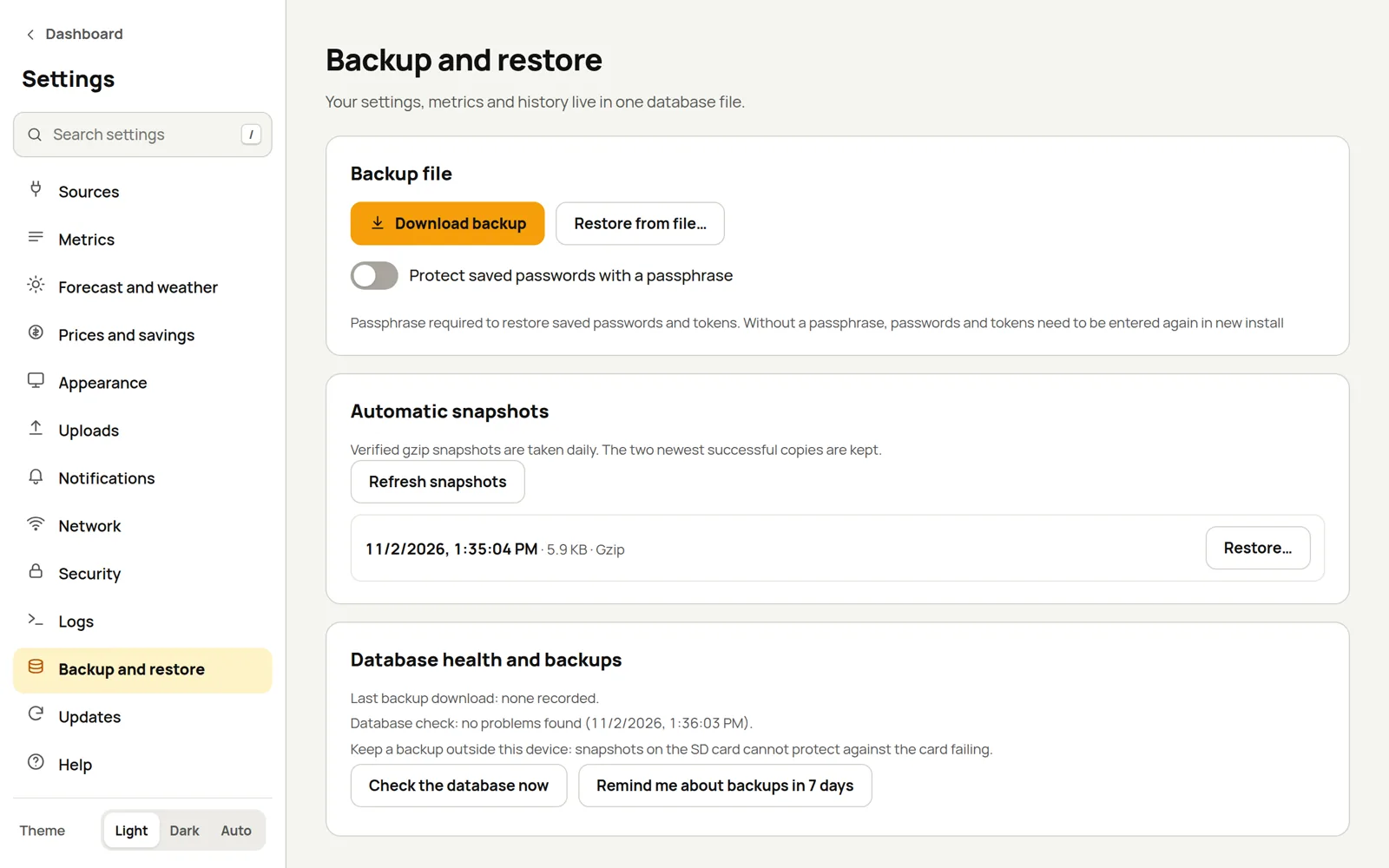
Your settings, layouts, metrics and history all live in one database file. Settings → Backup and restore lets you download it, restore it, and roll back to one of the automatic snapshots.
Download a backup
Press Download backup to save the whole database as a single file.
The passwords and tokens you've saved (for Solcast, MQTT, Home Assistant, Tuya, notifications and so on) are inside that file, locked with a key that stays on this box. That means if you restore the file onto a different box, those passwords can't be unlocked and you'd have to type them in again.
To take them with you, switch on Protect saved passwords with a passphrase before downloading, and choose a passphrase of 8 to 256 characters. The saved passwords in that file are then locked with your passphrase instead of the box's key.
The passphrase can't be recovered
It isn't stored anywhere. Keep it with the backup file, somewhere other than the box itself.
A backup copied off the box is your real safety net: the daily snapshots live on the same card or disk as everything else.
Restore
Press Restore from file… and pick a backup. Everything is replaced with what's in the backup.
If the backup was made with a passphrase, Epilykos asks for it after the upload, then locks the passwords again with the new box's own key. A wrong passphrase is refused and you're asked again, and nothing is replaced until you give the right one or cancel. If you've lost the passphrase, Restore without saved passwords restores everything else and leaves the saved passwords empty.
A few things a backup doesn't include:
- Two-step sign-in: a restored box starts with it switched off.
- Tailscale: you'll need to connect remote access again.
Automatic snapshots
Every day, Epilykos takes a compressed snapshot of the database and checks that it's sound, and it keeps the two newest good ones. Press Restore next to a snapshot to roll back to it, or Refresh snapshots to update the list.
If a snapshot fails, or there hasn't been a recent one, Epilykos raises the Automatic snapshot failed or Automatic snapshot overdue event; you can choose to be told in Notifications.
Remote backup
A backup that stays on the same card or disk does not help if the card fails or the box is stolen. Remote backup sends an encrypted copy of your latest snapshot to somewhere else, every week by default. It's off until you switch it on.
Choose a folder on this box: a USB drive, a network share you have mounted, or a folder you mapped into Docker as a volume. Mount the drive first. Epilykos creates only the last folder of the path, so a drive that isn't mounted can't fill the card by accident. Test folder checks that it can write there, and warns you if the folder is on the same disk as Epilykos's own data. More destinations, starting with Google Drive, are planned.
| Setting | What it does |
|---|---|
| Passphrase | Required. It locks the whole copy, history included, before it's written, so whoever holds the drive sees only noise. At least 8 characters. |
| How often | Weekly or daily. Scheduled uploads start between 01:00 and 06:00. |
| Copies to keep | 1, 2 or 4. A new copy is checked before an older one is deleted, so the folder briefly holds one more than you chose. |
When you save a new passphrase, Epilykos asks you to confirm that you have kept it.
The passphrase can't be recovered
It's stored on the box, locked with the box's key, but it isn't stored anywhere else. If you lose both the box and the passphrase, the copies can't be opened by anyone. Keep it somewhere other than the box. Changing it later doesn't re-lock older copies: they keep the passphrase they were made with until newer copies replace them.
Once it's switched on you'll see when the last copy was sent, when the next one is due, and the copies held at the destination. Each copy has two buttons:
- Check copy confirms the passphrase opens the copy and that its start is intact, without restoring anything.
- Restore… downloads it, unlocks it and replaces everything on this box with it, like restoring a snapshot. Leave the passphrase empty to use the saved one, or type the one the copy was made with.
Back up now takes a fresh snapshot and sends it straight away. If a copy fails, the earlier one stays where it is, Epilykos tries again after 30 minutes, then less often, and raises Remote backup failed (and Remote backup overdue if it goes much longer than your schedule). You can be told in Notifications.
Each upload is a full copy of your snapshot, because encrypted data can't be sent as changes. Check the size of your latest snapshot in Automatic snapshots and choose weekly if your connection is slow or metered.
Database health
Database health and backups shows when you last downloaded a backup, and the result of the last database check. Check the database now runs a check straight away. Epilykos also checks automatically a minute after an unexpected stop (a power cut, say), and once a week.
Once a month, a reminder asks you to download a backup; the daily snapshots don't count, because they stay on the same card or disk. Remind me about backups in 7 days puts it off for a week.
Last updated on