

Notifications
Alerts and reports by push, Telegram, Discord, ntfy or webhook.
Uploads (PVOutput)
Send your solar figures to PVOutput.org.
Network and remote access
Home and away addresses, Tailscale, Cloudflare Tunnel and reverse proxies.
Settings → Notifications lets Epilykos tell you when something needs your attention, and send you regular reports. Messages can go to your phones and computers, Telegram, Discord, ntfy or a webhook. Only the admin can see this section, and bot tokens, webhook addresses, authorisation headers and push keys are all stored encrypted.
It works in two parts: first set up where messages go (a channel, or a browser device), then add rules (what to send, and when).
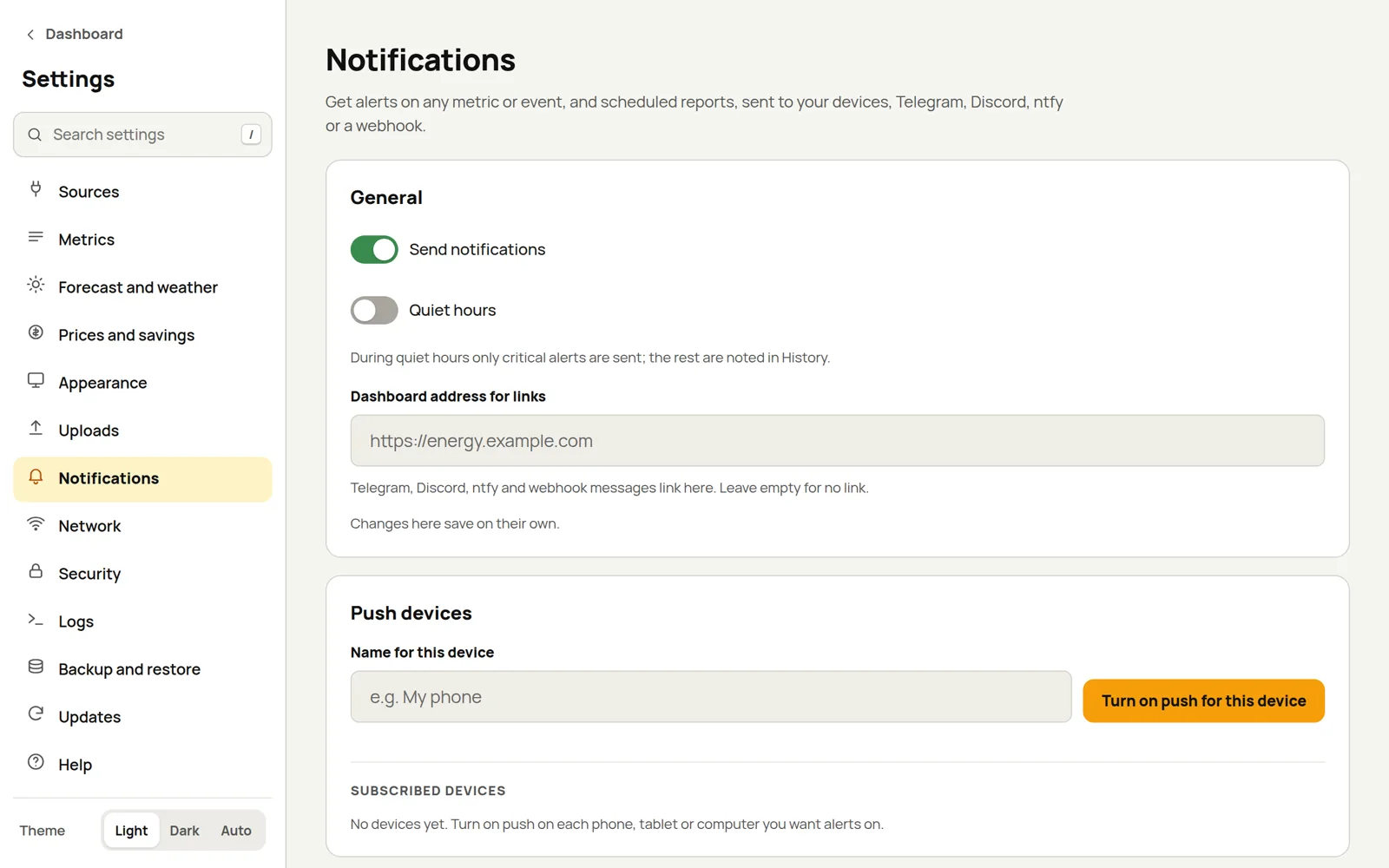
General
- Send notifications switches everything on or off in one go.
- Quiet hours hold back everything except critical alerts; more on that below.
- Dashboard address for links: messages on Telegram, Discord, ntfy and webhooks include a link to this address. Leave it empty if you don't want a link.
Channels
| Channel | How to set it up |
|---|---|
| Push to devices | Notifications on the phones, tablets and computers that have accepted the notifications prompt (see Push devices). One channel can reach all of them or just the ones you pick. |
| Telegram | Message @BotFather, send /newbot and paste the token it gives you. Then send your bot a message (or add it as an admin of your channel or group and post something there) and press Find chat. |
| Discord | Paste a channel's webhook address. You can have it Mention @here on critical alerts. |
| ntfy | Use ntfy.sh or your own ntfy server, with the ntfy phone app. Switch on Server is on my local network if your server is at home. |
| Webhook | Each alert is sent as JSON to Home Assistant, n8n, Node-RED or a script of your own, optionally with an authorisation header. |
Every channel has a test button, so you can check it before relying on it.
Push devices
Any browser that opens your dashboard, signed in or not, is offered a small prompt: Enable
notifications from this dashboard, with Enable and Not now. Accepting asks the browser for permission and adds the
browser to Push devices in Settings → Notifications. It is named after the browser and system, for
example Linux · Firefox, and you can rename it.
A device only gets what you choose. Being on the list sends it nothing. You pick it in one of two ways:
- in a rule's Send push to these devices list, so a device can get some alerts and not others;
- in a Push to devices channel, either one by one, or with All devices, including ones added later. With that switch on, every browser that accepts the prompt starts receiving what the channel sends, so leave it off if your dashboard is open to people you don't know.
Each device in the list shows where it is chosen, or "not chosen for any notification yet". Test sends it a test message and Remove takes it off the list.
- Not now hides the prompt on that browser for a week. A browser you have removed is offered the prompt again.
- If notifications are blocked for the site in the browser, the prompt doesn't appear. Allow them in the browser's site settings first.
- The prompt only appears on an
https://address (see below), and not on a browser that doesn't support push. - To keep the list tidy, Epilykos accepts at most 10 sign-ups an hour from one address and 50 devices in total, and only the push services browsers use (Google, Mozilla, Apple and Windows).
- The Turn on push for this device button in Settings does the same thing for the browser you are using, without asking for a name.
Push needs HTTPS
Push notifications only work when Epilykos is on an https:// address. Tailscale and Cloudflare
Tunnel both give you one; see Network and remote access. On
iPhone and iPad, add Epilykos to the Home Screen first; see
Install as an app.
Telegram commands
Switch on Answer commands in this chat and you can ask the bot for /status, /today,
/yesterday or /forecast whenever you like. It only answers in that chat.
Webhook payload
The JSON includes source, title, message, severity, tag, url and timestamp, plus either
event or rule.
Rules
You can start from a ready-made rule or build your own:
| Ready-made rule | What it does |
|---|---|
| Grid outage | Tells you when the grid goes off. It's critical, so it gets through quiet hours. |
| Grid restored | Tells you when the grid comes back, and how long it was off. |
| Battery low | Warns you when the battery stays under 20% for 5 minutes. |
| Source offline | Tells you when a source stops answering, and when it's back. |
| Data stopped updating | Warns you when a metric hasn't had a new value for 15 minutes. |
| Forecast unavailable | Tells you when Solcast or Open-Meteo can't be reached. |
| Evening summary | Sends today's solar, usage, grid and savings at 21:00. |
| Low solar tomorrow | Warns you in the evening when tomorrow looks poor. |
For each rule you choose which channels and push devices it uses, and how serious it is: Critical, Warning or Info.
Metric rules
A metric rule watches one reading. It can fire when the reading goes above, below or equal to a value
(text works too, such as a grid status of off), when it changes, or when it hasn't updated for a
number of minutes. You can fine-tune it with:
- For at least (minutes), so short spikes don't set it off;
- Resolve margin, how far the reading has to come back before the alert clears (an alert for "below 20" with a margin of 5 clears above 25);
- a "back to normal" message when it clears;
- Remind me every (minutes) for as long as it lasts;
- a cooldown, so you aren't told about the same thing over and over.
Event rules
An event rule waits for something to happen. It can watch one event, or a whole group with a wildcard
such as source.*:
| Event | When it happens |
|---|---|
grid.off | The grid status metric went off. |
grid.on | The grid came back; the message says how long the outage lasted. |
generator.on | The generator started. |
generator.off | The generator stopped; the message says how long it ran. |
source.offline | A source failed to answer 3 times in a row. |
source.online | A source that was offline answered again. |
mqtt.disconnected / mqtt.connected | The connection to an MQTT broker dropped, or came back. |
pvoutput.alert | PVOutput sent an alert to the webhook. |
forecast.unavailable | Solcast (for example because its daily allowance ran out) or Open-Meteo couldn't be reached. |
backup.snapshot_failed | The daily database snapshot couldn't be written. |
backup.snapshot_overdue | There's no recent automatic snapshot. |
backup.cloud_failed | The weekly remote copy couldn't be sent. The previous copy is still there. |
backup.cloud_overdue | No remote copy has been sent for much longer than your schedule. |
prepaid.low | The prepaid meter balance fell to a warning level you set (units left, or days left). Sent once. |
prepaid.out | The prepaid meter balance reached 0. |
update.available | A newer Epilykos build is out. You're told once per build. |
system.started | Epilykos started, after an update, a reboot or a crash. |
Scheduled reports
A scheduled report arrives at a set time on the weekdays you choose. It can be:
- a daily energy summary, for today or yesterday;
- the solar forecast, for tomorrow or today, optionally only when it's below a number of kWh (a handy "poor solar day ahead" warning);
- the live status.
Scheduled reports are sent during quiet hours too.
Quiet hours and history
During quiet hours, everything except critical alerts waits until they're over. Every message that was sent is listed under History.
Epilykos remembers what's firing, the cooldowns and when each report last went out, even across restarts, so a restart won't repeat an alert or send a report twice.
Last updated on